
Docusign - Upload & Sign Docs
DocusignProductivity
4.827.88K Reviews
- Version
- 3.63.1
- Installs
- 10.00M
- Age Rating
- Everyone
Screenshots

Our Review of Docusign - Upload & Sign Docs
 Analysis by Appyee
I used to lose more time to the little steps around paperwork than to the paperwork itself: finding a file, printing it, signing in the right place, scanning it, then sending it back. Docusign - Upload & Sign Docs is most useful when it removes that back-and-forth. It turns a document that needs a signature into something I can handle on my phone, which is a real convenience when a printer or computer is nowhere nearby.
When paper stops being the easiest option
That convenience matters most for occasional tasks that still have deadlines: a rental form, a permission document, a service agreement, or a work contract waiting in an inbox. Instead of saving the file, printing it, and figuring out how to return a signed copy, I can keep the signing process together on my phone. It is not a replacement for reviewing important terms carefully, but it can remove several fiddly steps between reading a document and sending it back.
The app is a free productivity tool from Docusign, and its focus is practical rather than broad: work with documents that need an electronic signature. Its 4.5 average from around 156,000 ratings, alongside more than 10 million installs, suggests that plenty of people use it for this familiar task. It is rated for everyone, though the usefulness of a signature app depends more on what you need to sign than on your age or technical confidence.
Getting started without overcomplicating it
Jumping into Docusign is refreshingly straightforward. Once you download it from the app store, setting up your account is a breeze. Just a few taps, and you're ready to go. The app's interface is clean and intuitive, making it easy to navigate even if you're not particularly tech-savvy.
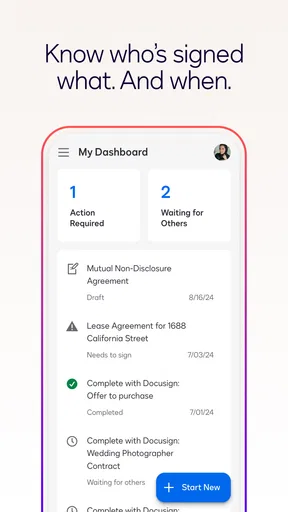
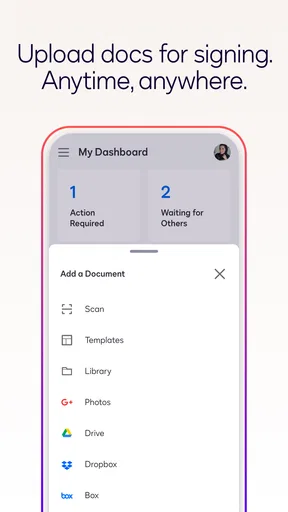
The home screen is your command center, where you can see all your recent documents, those waiting for your signature, and any outstanding requests. It’s like a digital desk that keeps everything organized for you. And trust me, once you start using it, you'll wonder how you ever managed without it.
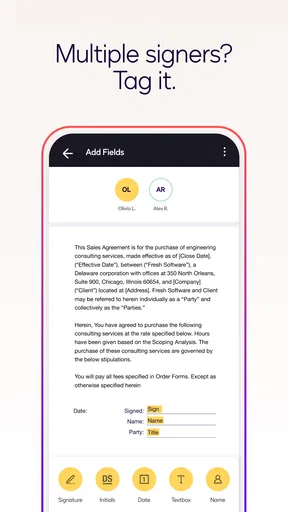
One useful habit is to check that the document is complete before you send it on. Confirm the right file is open, read the surrounding text, and look for every place that requires a signature or initials. A few seconds of checking can prevent the very avoidable hassle of asking someone to reopen or redo a document because a field was missed.
Handling files and signatures on a phone
One of the standout features of Docusign is its ability to handle various document formats. Whether it's a PDF, Word document, or even a photo of a handwritten note, you can upload it with ease. The app supports multiple file types, which is a huge plus in my book.
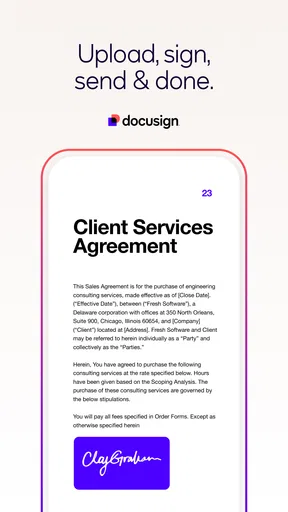
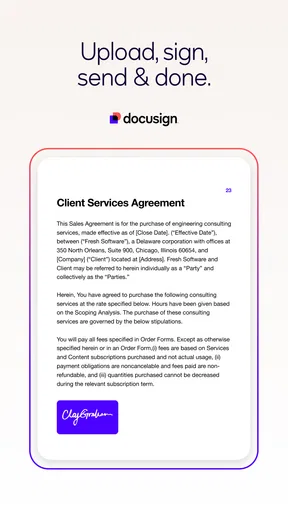
Signing documents is where the magic happens. The app allows you to create your own signature or initials by simply drawing them on the screen. You can also choose from a few pre-designed styles if you're not feeling particularly artistic. This flexibility ensures that your digital signature looks exactly how you want it.
For a smoother routine, I would decide on a signature style once and use it consistently, rather than spending time adjusting how it looks each time. When a document is a photo or a scan, I would also inspect the page closely before signing: an image may be harder to read than a clean digital document, and a signature should not be a substitute for checking the actual wording. If the original file is available, using that is usually the more comfortable option.
That trade-off is worth keeping in mind if most of your work involves editing, drafting, or collaborating on the contents of a document. Docusign is aimed at getting signatures and moving signed paperwork along; a word processor or shared document editor is generally a better place to write and revise. I see it as a focused tool to use at the end of a document workflow, not as a complete office suite.
Sending documents and following progress
Another nifty feature is the ability to invite others to sign documents. The process is seamless—just enter their email address, and they receive a notification to sign. It’s perfect for when you need to get documents signed off by multiple parties.
A realistic example is a freelancer who receives an agreement while away from a desk. They can review the file on a phone, add their signature, and send it back without waiting until they can print and scan it. If another person needs to sign too, sending the request through the app helps avoid the awkward chain of downloading, forwarding, and wondering which copy is current. For a simple one-off form, though, the recipient still needs to be comfortable completing an electronic signing request.
When several people are involved, it helps to verify each recipient’s email address before sending. A small typo can slow down the whole process, and a request sent to the wrong person is not a shortcut. I would also keep the original document and any related messages somewhere easy to find, especially for agreements that may matter later; a tidy signing flow does not remove the need for sensible personal record-keeping.
What makes the digital workflow worthwhile
In today's digital age, security is a top priority, and Docusign doesn't disappoint. The app uses strong encryption to keep your documents safe and secure. Plus, it complies with e-signature laws worldwide, so you can be assured that your electronic signatures are legally binding.
The app also tracks every step of the signing process, creating an audit trail that you can refer back to at any time. This feature is fantastic for keeping everything transparent and ensures that nothing falls through the cracks.
For me, the practical benefit of tracking is clarity: if a document is still waiting for someone, I can distinguish that from a file that has already moved through the signing process. That is especially helpful when coordinating a shared agreement, where otherwise it is easy to lose track of who has responded. Still, a digital record is not a reason to rush. I would read the full document before adding a signature and keep the completed copy with the rest of the relevant paperwork.
Compared with printing and scanning, the app is plainly more convenient when everyone involved accepts electronic signatures and the document is straightforward. Compared with simply emailing a file around, a signing workflow is more purposeful because it is designed around obtaining signatures rather than editing or discussing a draft. But if the other party insists on a paper original, or if the document needs substantial changes, the familiar paper process or a document-editing tool may be the better fit.
Where it fits—and where it does not
If you're still on the fence about whether Docusign is right for you, let me break it down. The app saves you time, reduces clutter, and makes the whole process of signing and sending documents incredibly efficient. It’s a lifesaver for anyone dealing with contracts, agreements, or even simple forms.
And let's not forget the environmental impact. By going digital, you're cutting down on paper waste—a small step towards a greener planet. It's a win-win situation!
Whether you're a business professional, a freelancer, or just someone who wants to make their life a little more organized, Docusign is worth checking out. It's become an essential tool in my daily routine, and I have a feeling it might just become one in yours too.
It is less compelling if you rarely sign documents, prefer to keep sensitive paperwork off a phone, or need a tool for writing and revising rather than signing. The app itself is free to start with, while in-app purchases range from $9.99 to $479.99 per item, so I would check what a particular paid option covers before committing. The current version is 3.57.0, and the app has been available since January 11, 2012; those details make it an established service, but the right choice still depends on your workflow.
So go ahead, give it a try. You can download it directly from the app store and start transforming how you manage documents today. Trust me, your future self will thank you.
A sensible shortcut for signatures
My recommendation is simple: use it when the job is to get a document signed, not when the job is to create or negotiate one. Its strongest value is the time and friction it can remove from routine paperwork, particularly when a printer, scanner, or laptop is inconvenient. For people who handle agreements regularly, that focused convenience can make a real difference; for occasional signers, it is still a useful option to have ready when a form arrives at the wrong moment.
Verdict
Strengths of Docusign - Upload & Sign Docs
- User-friendly interface for quick navigation.
- Seamless integration with popular cloud services.
- Strong security features with encryption.
- Customizable templates for various documents.
- Real-time notifications for document status.
Limitations of Docusign - Upload & Sign Docs
- Limited offline functionality for document editing.
- Subscription required for premium features.
- Occasional sync issues with cloud storage.
- Mobile app lacks some desktop features.
- No option for freehand signature drawing.
Similar Picks in This Category
View All
Google Calendar
Google LLC4.6

Google Drive
Google LLC4.3

Google Assistant
Google LLC3.9

Microsoft OneDrive
Microsoft Corporation4.6

Samsung Calendar
Samsung Electronics Co., Ltd.4.1

Microsoft OneNote: Save Notes
Microsoft Corporation4.6
Frequently Asked Questions
What is DocuSign and how does it work?
DocuSign is a digital transaction management platform that allows users to upload, sign, and manage documents electronically. It works by enabling you to upload documents to the app, specify where signatures are needed, and send them to recipients for signing. Once signed, the documents are stored securely for easy access and retrieval.
Is DocuSign legally binding?
Yes, DocuSign is legally binding. The platform complies with the U.S. Electronic Signatures in Global and National Commerce (ESIGN) Act and the Uniform Electronic Transactions Act (UETA), as well as similar laws in many other countries. This ensures that electronic signatures are recognized and enforceable under the law.
Can I use DocuSign offline?
DocuSign primarily requires an internet connection to upload and send documents. However, the mobile app does have offline capabilities that allow you to prepare documents and templates. Once you're back online, the app will automatically sync your changes and send out any pending documents for signature.
What file formats does DocuSign support?
DocuSign supports a wide variety of file formats including PDF, Word, Excel, and images like JPEG and PNG. This flexibility allows you to work with most common document types and ensures that you can easily upload and manage your files within the app.
Is my information secure with DocuSign?
Yes, DocuSign takes security very seriously and employs advanced encryption technologies to protect your documents and personal information. The platform also offers features like two-factor authentication and audit trails, ensuring that your data is safe and that you have a clear record of all actions taken on your documents.
